Deployments and push to deploy
How VaultPanel deploys an app from Git in stages, rolls back to an earlier release, deploys on every push and reloads Node.js apps without downtime.
Each deployment clones your branch into a new release folder, installs and builds it there, then switches the app to it and checks that it answers. The running release is never touched until the new one is ready, and a release that fails its health check is switched back.
Deploy
Click Deploy now on the app's Deployments tab. A deployment also runs when the app is created (unless you untick Deploy as soon as the app is set up), and on every push when push to deploy is on.
Only one change runs on an app at a time. While a deployment runs, the app shows as deploying,
and a second deployment is refused with 409 APPLICATION_BUSY until it finishes.
Stages
A deployment goes through these stages, in order. A failed deployment names the stage it stopped at.
| Stage | What happens |
|---|---|
| Prepare | The app's user and folders are checked or created. |
| Fetch | git clone --depth 1 of the branch into releases/<id>. The commit hash, author and message are recorded. |
| Install | Dependencies are installed (see Supported runtimes), or your install command runs. |
| Build | Your build command runs, if there is one. |
| Configure | The environment and the PM2 process file are written. |
| Start | current switches to the new release and the app starts or restarts. |
| Health check | With a port, the app must answer on it within the health check time (30 seconds by default). Without a port, it must stay running. |
If anything fails before Start, the running release keeps running and the half-made release is
removed. If the health check fails and there was a previous release, the app switches back to it
and the deployment fails with HEALTH_CHECK_FAILED. A deployment can run for up to 30 minutes.
Deployment history
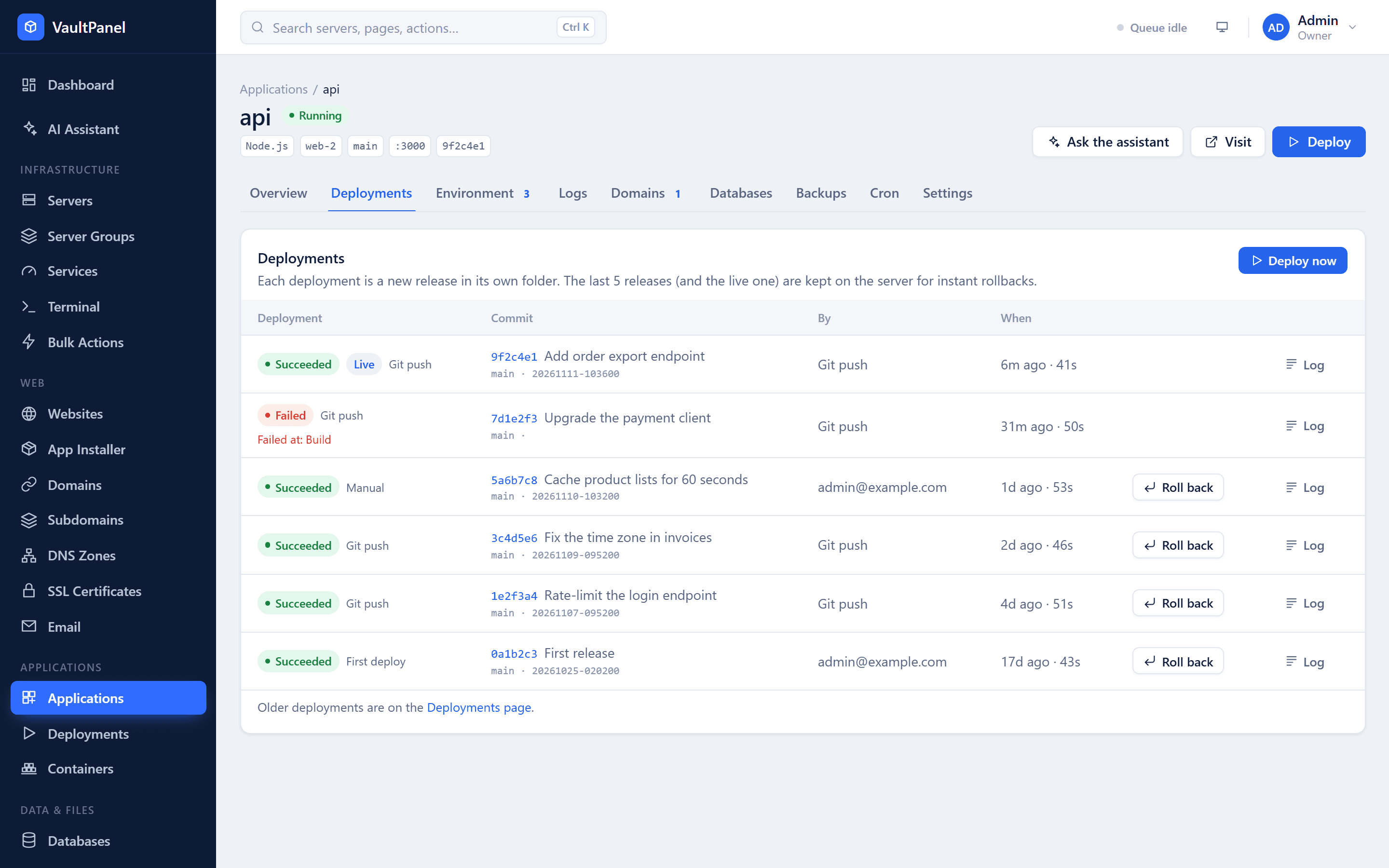
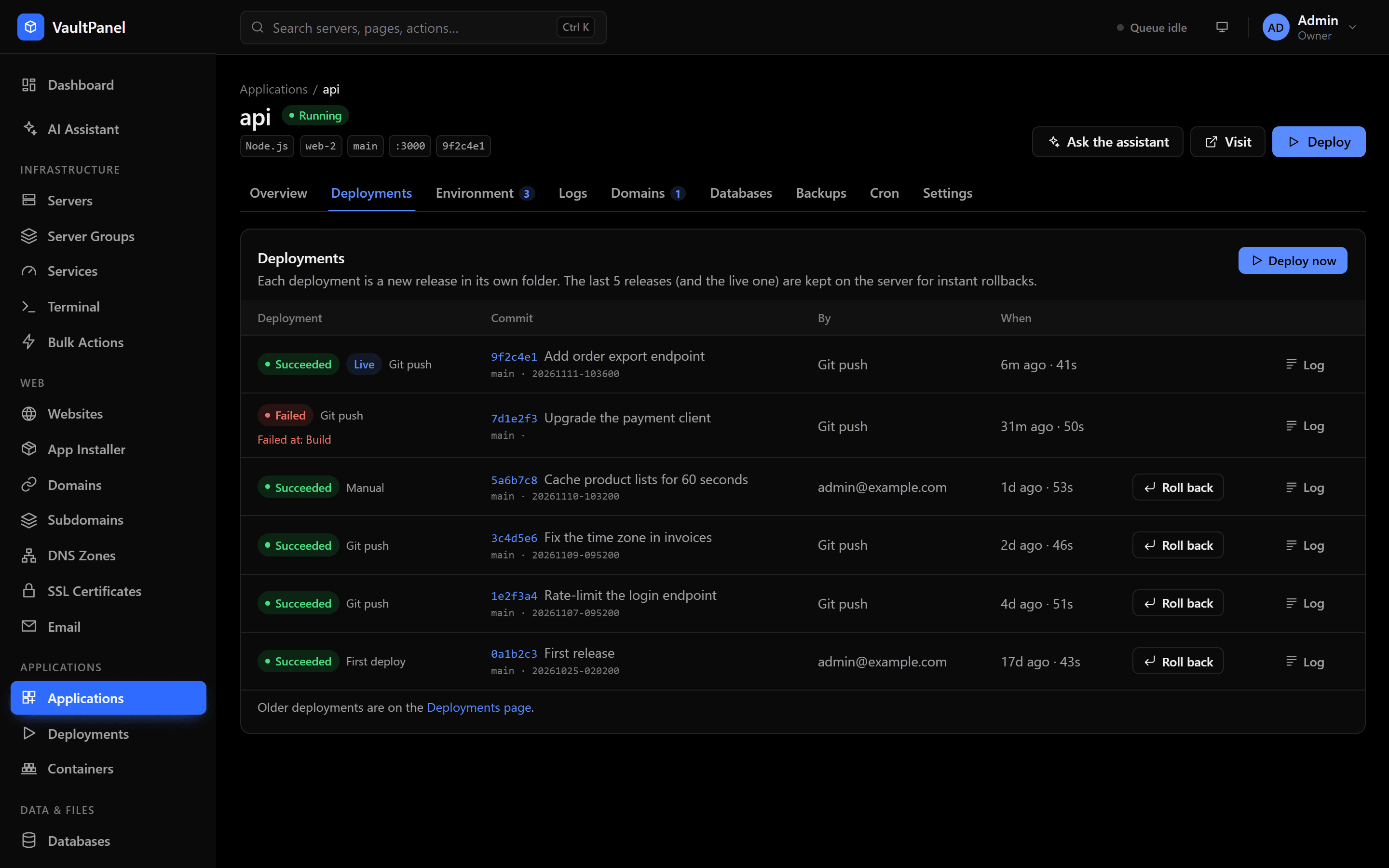
The app's Deployments tab lists its deployments, newest first, with their commit, trigger and status, and marks the live release Live. Deployments in the sidebar lists every deploy and rollback of every app. Open one to see its full log.
| Trigger | Started by |
|---|---|
manual | Deploy now or the API. |
create | The first deployment when the app was created. |
webhook | A push to the app's branch. |
rollback | A rollback to an earlier release. |
Statuses are queued, running, succeeded, failed and cancelled.
Roll back
The newest releases stay on the server (5 by default; Releases to keep in Settings, up to 20), always including the live and the previous one. To go back to one, click Roll back next to it on the Deployments tab.
The app switches to that release and restarts with the current environment and start command. Nothing is rebuilt, so a rollback takes seconds. It still runs the health check.
You can roll back only to a release that deployed successfully and is still on the server. A
release that was removed answers 409 RELEASE_NOT_FOUND: deploy its commit again instead.
Private repositories
Use the repository's SSH address (git@github.com:you/app.git) for a private repository. When the
app is set up, VaultPanel makes an Ed25519 deploy key for it in the app's .ssh folder.
Create the app without deploying
Untick Deploy as soon as the app is set up when you create the app.
Add the deploy key to the repository
Copy the public key from the Deploy key card on the app's Settings tab, and add it to the repository as a read-only deploy key (on GitHub: Settings > Deploy keys).
Deploy
Click Deploy now. Git connects with that key and trusts the Git host's key the first time it sees it.
https:// repositories are cloned without a key, so they must be public.
Push to deploy
Push to deploy gives the app a webhook URL for GitHub, GitLab, Gitea, Forgejo or Bitbucket. Each push to the app's branch deploys it; pushes to other branches are ignored.
Turn it on
On the app's Settings tab, click Turn on on the Push to deploy card. Copy the Webhook URL and the Secret now: they are shown only once.
The URL has the form https://panel.example.com/api/v1/hooks/deploy/<token>, built from the
panel's address, so the panel must be reachable from your Git host.
Add the webhook to your repository
Add a webhook with that URL, content type application/json, and push events. Paste the secret
in its secret field:
| Git host | Where the secret goes |
|---|---|
| GitHub | Secret |
| GitLab | Secret token |
| Gitea, Forgejo | Secret |
| Bitbucket | Secret |
Push
A push to the branch answers 202 and starts a deployment with the trigger webhook. Ping events
and events other than pushes answer 200 and do nothing.
How requests are checked
The token in the URL finds the app, and the secret proves the request came from your Git host:
- GitHub, Gitea, Forgejo and Bitbucket sign the body with HMAC-SHA256. VaultPanel reads the
signature from
X-Hub-Signature-256(sha256=<hex>),X-Gitea-SignatureorX-Forgejo-Signature(<hex>), orX-Hub-Signaturewhen it starts withsha256=. - GitLab sends the secret itself in
X-Gitlab-Token.
A request without a valid signature answers 401 WEBHOOK_SIGNATURE_INVALID, deploys nothing, and
is recorded in the audit log as application.webhook_rejected. The webhook endpoint accepts up to
30 calls a minute.
To replace a leaked URL or secret, click Create a new URL, then update the webhook in your Git host. Turn off removes the webhook.
Zero-downtime reloads
Node.js apps can reload without dropping requests: deployments, restarts and saved settings start the new version before stopping the old one, so the port keeps answering. This needs agent 0.32.0 or newer.
To use it:
- Make the start command run a Node.js file directly, such as
node server.js, notnpm start. PM2 runs the app in cluster mode, which can only run a Node.js script. A program that is itself a Node.js script, such asnode_modules/.bin/next, also works. - Tick Zero-downtime reloads on the Settings tab and save.
- Click Apply and restart once, so the app starts in cluster mode.
A deployment then logs a reload instead of a restart. If the start command cannot run in cluster mode, the deployment fails at the Configure stage and says why.
Running several copies of an app uses the same cluster mode. See Scaling apps.
API
Deployments can be started and followed through the REST API, the SDK and the CLI:
import { VaultPanel } from '@vaultpanel/sdk';

const panel = new VaultPanel({ baseUrl: 'https://panel.example.com', token: process.env.VAULTPANEL_TOKEN });
const { job } = await panel.applications.deploy(appId);
await panel.jobs.wait(job.id);
See Applications API and CLI commands.