Backing up and restoring
Back up websites, apps and databases by hand or on a schedule, restore one in place with a safety copy first, or download a copy.
A backup holds the files of one website or app, or the contents of one database. The agent writes it on the server, records its SHA-256 checksum, and can copy it to off-server storage. You restore it in place, after a safety copy of the current state, or download it.
What a backup contains
| Type | Contents | File |
|---|---|---|
| Website | Every file in the site's folder, except tmp and logs. | .tar.gz |
| App | The live release, shared files, .env and deploy key. Older releases, logs and PM2 state are left out. | .tar.gz |
| Database | A compressed SQL dump of the whole database: tables, views, routines, triggers and events. | .sql.gz |
Website and app files are archived by tar running as the site's or app's own user, so a backup can
only read what that user could.
On the server, backups are kept in /var/backups/vaultpanel, readable by root only:
/var/backups/vaultpanel/site/<name>/<backup id>.tar.gz
/var/backups/vaultpanel/app/<name>/<backup id>.tar.gz
/var/backups/vaultpanel/database/<name>/<backup id>.sql.gz
With off-server storage, the backup is copied there and, unless the storage keeps local copies, removed from the server once the copy is confirmed.
Back up now
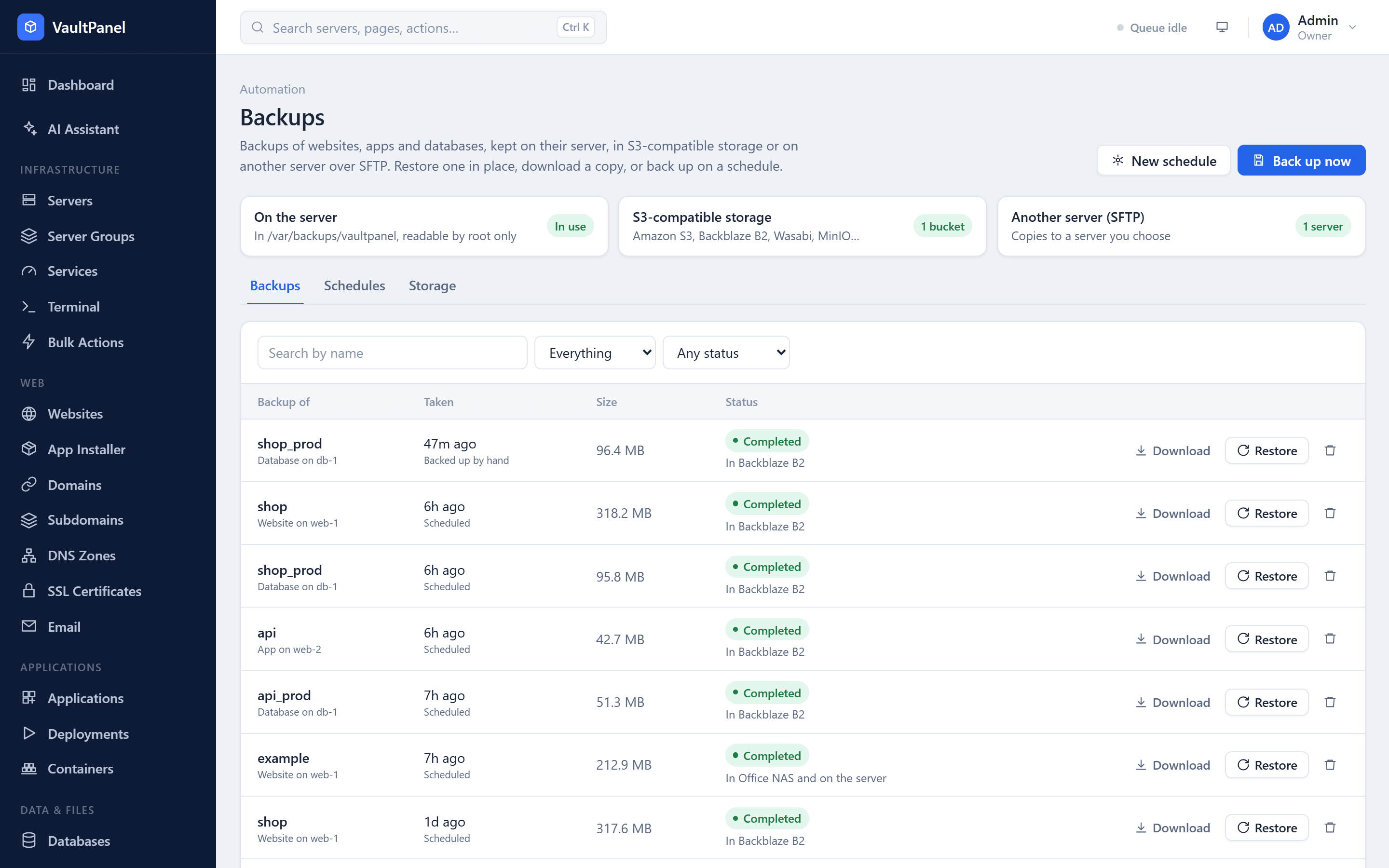
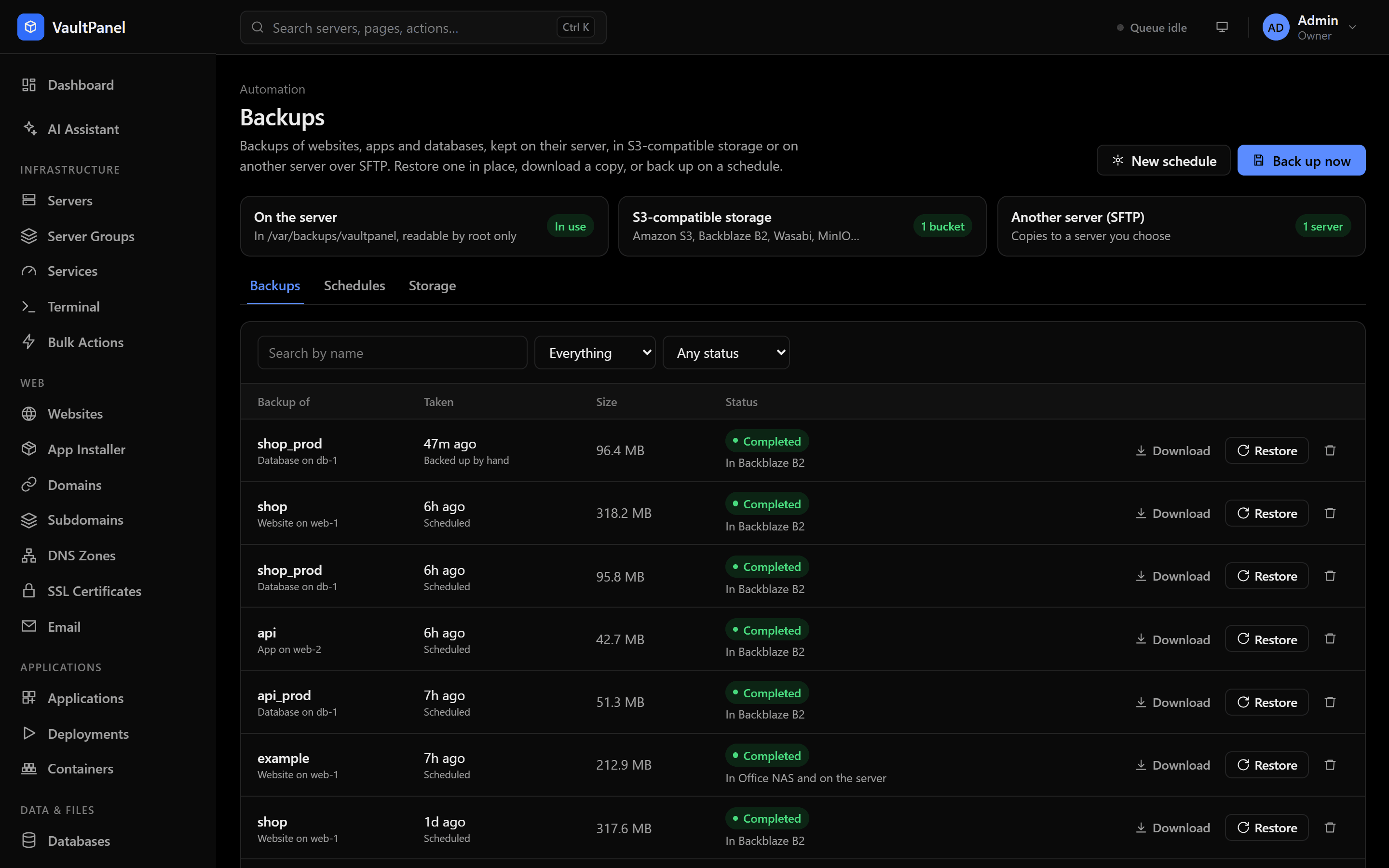
Click Back up now on Backups, or on the Backups tab of a website, app or database:
- Under What to back up, choose the website files, app files or database. A website's or app's own tab also offers the databases linked to it.
- Under Store in, keep On the server only or choose a storage.
- Click Back up now.
The backup shows as creating while the agent writes it, then completed with its size. Only one
backup of the same website, app or database runs at a time. A backup can run for up to an hour.
Back up on a schedule
Each website, app and database can have one schedule. Open its Backups tab, or the Schedules tab on Backups, and set:
| Field | What it does |
|---|---|
| Schedule | A cron expression, or one of the common schedules. See Schedules. |
| Time zone | The time zone the schedule runs in. Default UTC. |
| Backups to keep | 1 to 100, default 7. |
| Store in | On the server only, or a storage. |
| Schedule on | Untick to pause the schedule without losing it. |
The panel's worker starts each backup on time. Once a scheduled backup completes, the oldest scheduled backups beyond the number to keep are deleted. Backups taken by hand are never deleted automatically. Failed scheduled backups are kept for 30 days, then removed.
Restore a backup
Click Restore next to a completed backup. Type the name of the website, app or database to
confirm, and keep Back up the current state first ticked: it saves a safety copy you can restore
to undo the restore. The safety copy is listed with the other backups, with the trigger
pre_restore.
The agent first fetches the backup from storage if it is not on the server, and checks its SHA-256. A file that does not match is never used. Then:
| Type | What a restore does |
|---|---|
| Website | Every file of the website is replaced with the files in the backup. Files added since are removed. tmp and logs are left as they are. |
| App | The app's files and releases are replaced with those in the backup. The app restarts on the release the backup held, and its health check must pass. |
| Database | The database is dropped and created again from the backup. Rows written since are lost. Users keep their access. |
If the safety copy fails, nothing is restored. A backup of a website, app or database that was deleted cannot be restored into it: download it instead.
Download a backup
Click Download next to a completed backup. The agent first copies the backup to the panel and the panel checks its checksum; the download then starts. The prepared copy stays on the panel for 6 hours.
The panel accepts downloads up to 10,240 MB by default (VAULTPANEL_BACKUP_DOWNLOAD_MAX_MB). For a
larger backup, copy it from the server with scp or SFTP, or download it from its storage. Every
download is recorded in the audit log.
Delete a backup
Click the trash button next to a backup. Its file is removed from the server and from its storage. A backup cannot be deleted while it is being written or restored.
Statuses and triggers
| Status | Meaning |
|---|---|
creating | The agent is writing it. |
completed | Written, with its checksum known. |
failed | It was never written. |
deleting | Its file is being removed. |
missing | The file is no longer on the server, for example because it was removed by hand. |
| Trigger | Meaning |
|---|---|
manual | Backed up by hand. |
schedule | Taken by a schedule. |
pre_restore | A safety copy taken before a restore. |
Notifications
Backups and restores send the webhook events backup.succeeded, backup.failed,
restore.succeeded and restore.failed. See
Webhook notifications.
Hosting customers
Hosting customers back up and restore their own websites, apps and databases. Their backups stay on the server: they neither see nor choose storage, unless staff give them a schedule that uses one.
Permissions
| Permission | Allows |
|---|---|
backups.read | Seeing backups and schedules. |
backups.create | Backing up now. |
backups.manage | Restoring, downloading, deleting and scheduling backups. |
Setting up storage needs settings.manage. See
Off-server backup storage.
Backups and automation
Back up websites, apps and databases, keep copies off the server, run commands on a schedule, and notify other systems when something happens.
Off-server backup storage
Copy backups to Amazon S3, Backblaze B2, Wasabi, Cloudflare R2, MinIO or another server over SFTP, so they survive the loss of a server.