MariaDB databases
Create MariaDB databases and users with generated passwords, add their connection settings to an app, and link them to apps and websites.
VaultPanel creates MariaDB databases and users on your servers through the agent, generates strong passwords, keeps them encrypted in the panel, and can hand a database's connection settings straight to an app.
The database server
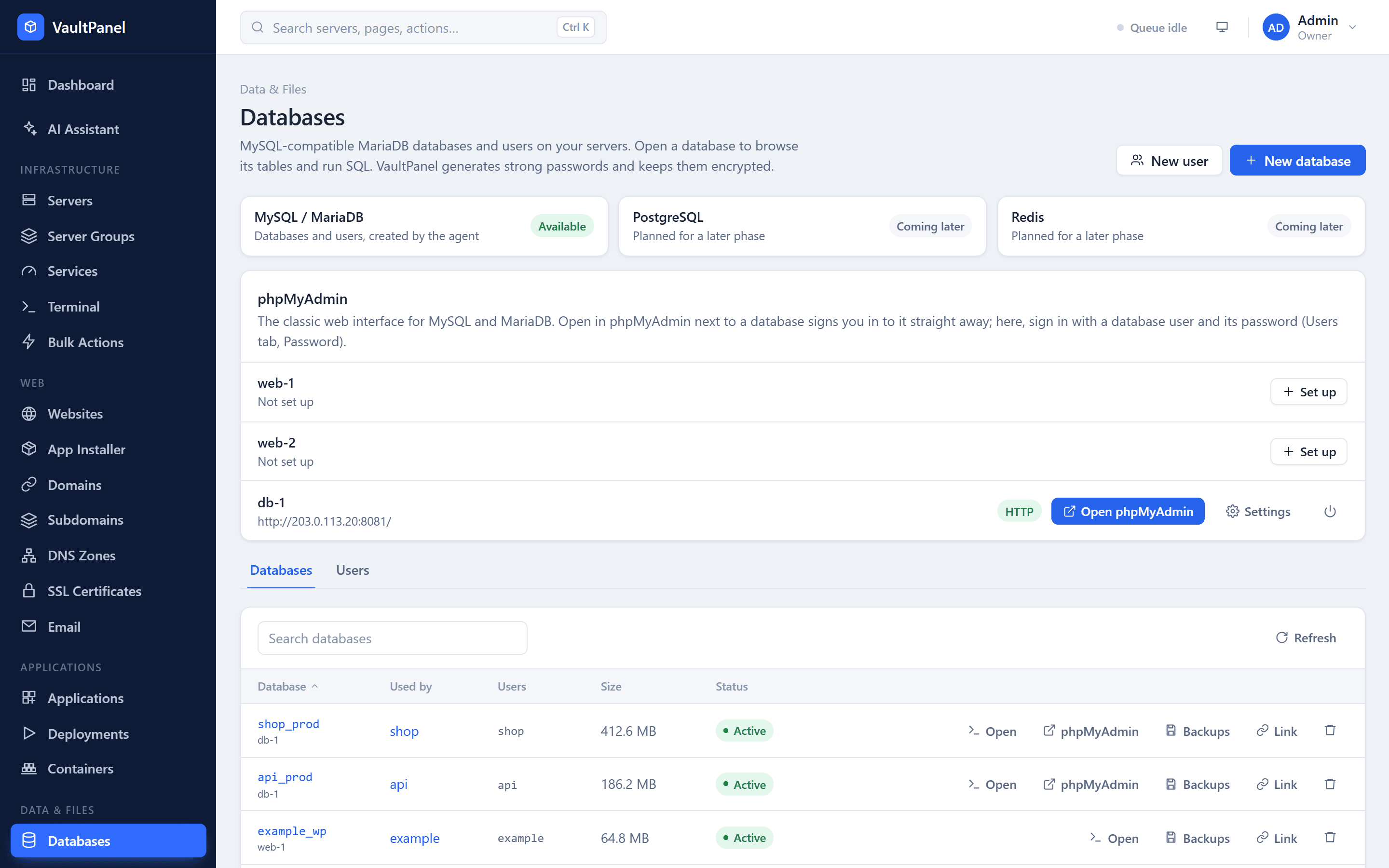
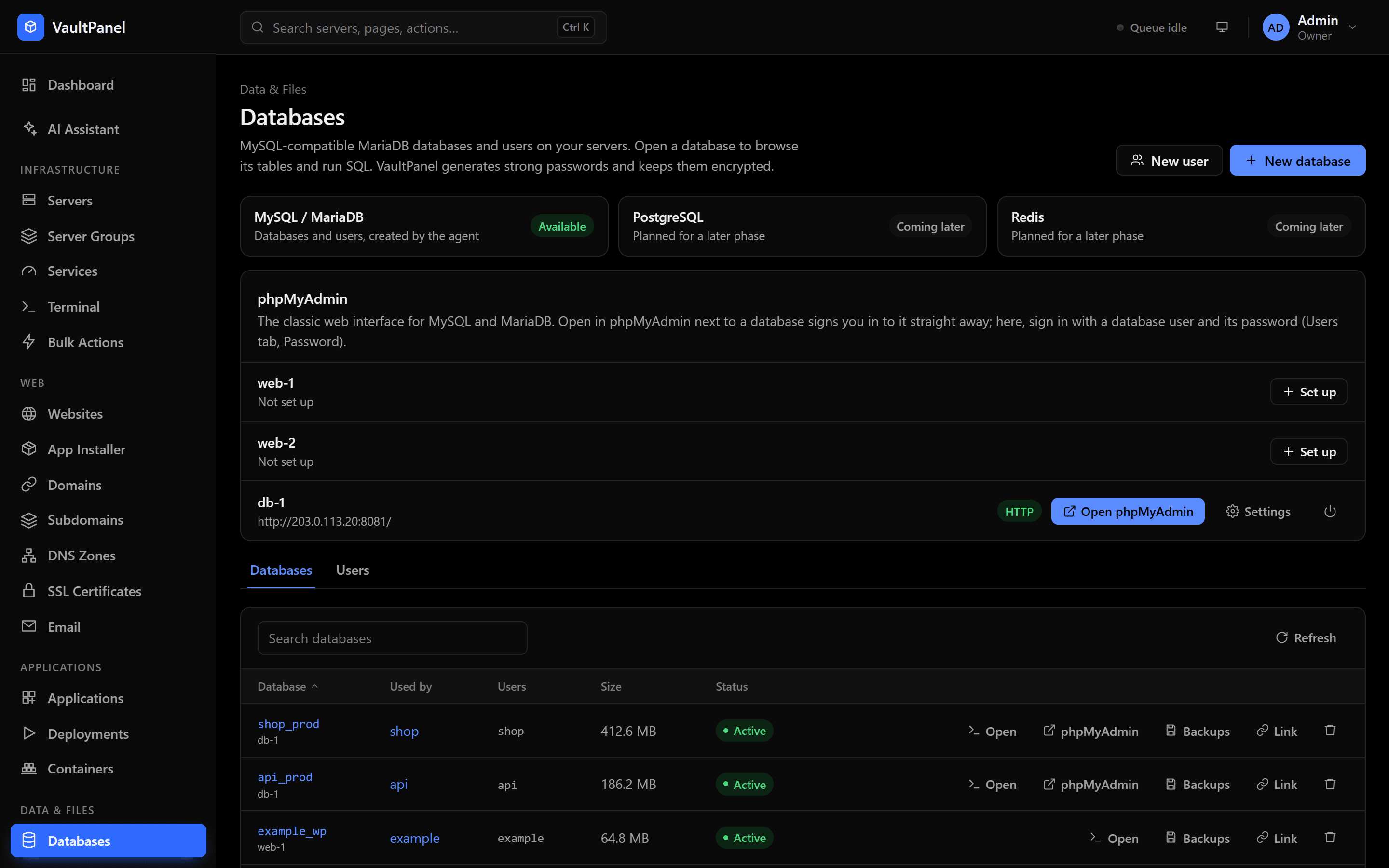
Databases live in the MariaDB that runs on the server itself, listening on 127.0.0.1 port 3306.
The installer can set it up on the panel's own server (see
Installation); on any server you can install it from the
Database server card on the server's page.
MySQL 8.4 and 8.0 come in a later version. PostgreSQL and Redis are listed under Databases as coming later and cannot be created yet.
Create a database
Open the form
Go to Databases and click New database, or open an app's Databases tab to create one for that app.
Name it
| Field | What it does |
|---|---|
| Server | The server whose MariaDB holds the database. |
| Database name | 2 to 64 lowercase letters, digits and underscores, starting with a letter. mysql, information_schema, performance_schema, sys, test and phpmyadmin are reserved. |
| For app | Optional. The app that uses it. |
| For website | Optional. The website that uses it, so its Backups tab can back the database up too. |
Create a user for it
Create a user for it is ticked by default. The user is named like the database unless you give a Username, and gets the Access you choose:
| Access | Privileges |
|---|---|
| Full access | Read, write and change the structure (tables, indexes). |
| Read only | SELECT only. |
With an app chosen, tick Add the connection settings to the app's environment to add the variables below to the app.
Save the password
The user's generated password and connection URL are shown once. Admins can look the password up again later.
Databases are created with the utf8mb4 character set and the utf8mb4_unicode_ci collation.
Connect from an app
Users connect from the server itself, as localhost or 127.0.0.1, on port 3306. When you add the
connection settings to an app's environment, VaultPanel adds these variables, skipping any the app
already has:
| Variable | Value |
|---|---|
DATABASE_URL | mysql://<user>:<password>@127.0.0.1:3306/<database> |
DB_HOST | 127.0.0.1 |
DB_PORT | 3306 |
DB_NAME | The database name |
DB_USER | The username |
DB_PASSWORD | The password |
The password is URL-encoded in DATABASE_URL. The app sees the new variables after it restarts:
click Apply and restart on the app's page. See
Environment variables.
Database users
The Users tab lists every database user. A user can reach several databases on the same server, with the same access to each. Click New user to make one with access to whole databases:
| Field | What it does |
|---|---|
| Username | 2 to 32 lowercase letters, digits and underscores, starting with a letter. root, mysql, debian_sys_maint, admin, vaultpanel, mariadb and phpmyadmin are reserved. |
| Access | Full access or Read only. |
| Password | Generated when left out, or 12 to 72 letters, digits or the symbols ! # % + , . : = ? @ ^ _ ~ -. |
| Databases | The databases on that server it may reach, up to 50. |
Editing a user changes its access and databases, and can keep the current password, generate a new one, or set one you choose. Click Password next to a user to see its password and connection URL: every look is recorded in the audit log.
Deleting a user stops apps that use it from connecting. Its databases are kept.
Link a database to an app or website
A database can be linked to one app and one website on the same server. Their Backups tabs can then back it up, and list its backups with their own. Change the links with Link on the database's row.
Delete a database
Deleting a database removes every table and row in it from the server, and users lose their access to it. Its backups are kept. Without a backup, this cannot be undone.
Browse and query
Open a database to see its tables, browse rows and run SQL in the panel, or open it in phpMyAdmin already signed in. See Database browser and SQL and phpMyAdmin.
Back up a database
A database backup is a compressed dump of the whole database. Back it up from Backups, or from the Backups tab of the app or website it is linked to. See Backing up and restoring.
Permissions
| Permission | Allows |
|---|---|
databases.read | Seeing databases and users. |
databases.manage | Creating, linking and deleting databases and users, seeing passwords, the database browser and one-click phpMyAdmin. |
Adding connection settings to an app also needs applications.manage. Hosting customers manage only
the databases of their own account, within their plan.
Docker containers
Run Docker images on your servers with safe defaults, published ports, volumes, environment variables and limits, and automatic rollback on updates.
Database browser and SQL
Browse a database's tables, rows and structure and run SQL inside the panel, read-only by default and confined to that one database.