Connecting servers
Install the VaultPanel agent on a Linux server, understand how it runs and talks to the panel, keep it updated and remove it again.
The panel manages a server through a small agent that runs on it as a systemd service. The agent connects out to the panel over HTTPS, so the server needs no open inbound port. It reports its state every 15 seconds and runs only operations the panel has signed, from a fixed allow-list, without a shell.
Requirements
- 64-bit Linux with systemd, on x86-64 or arm64, run as root to install.
curl.- Website, app, database and security operations target Debian and Ubuntu (apt, UFW,
www-data,/etc/php/<version>/fpm). - The server must reach the panel's address over HTTPS.
The agent is one program with nothing else to install: the server does not need Node.js for it. Node.js is only needed to run Node.js apps and PM2; install it system-wide for that (for example from NodeSource), not under a home folder.
The panel's own server
The server the panel runs on connects itself before the API starts. It appears in the list as This server, with no install command needed, and its agent is updated automatically whenever the panel is updated.
- If you had already added this machine by hand, that server is marked as the panel's own instead of being added twice.
- If you remove it from the panel, it is not added again on the next start. To connect it again, run
npm run connect-local -- --forceas root in the panel's folder. VAULTPANEL_LOCAL_AGENT=falsein the panel's.envturns the automatic connection off.
Add a server
Add it in the panel
Open Infrastructure > Servers and click Add server. Give it a name such as web-production-1 (letters, numbers, spaces and . _ - ( )). The rest of its details fill in once the agent connects. Adding servers needs servers.manage.
Copy the install command
The panel shows an install command with a one-time enrollment token (vpe_…). The command is shown only once. The token works once and expires after 60 minutes by default (VAULTPANEL_ENROLLMENT_TTL_MINUTES, from 5 minutes to 7 days).
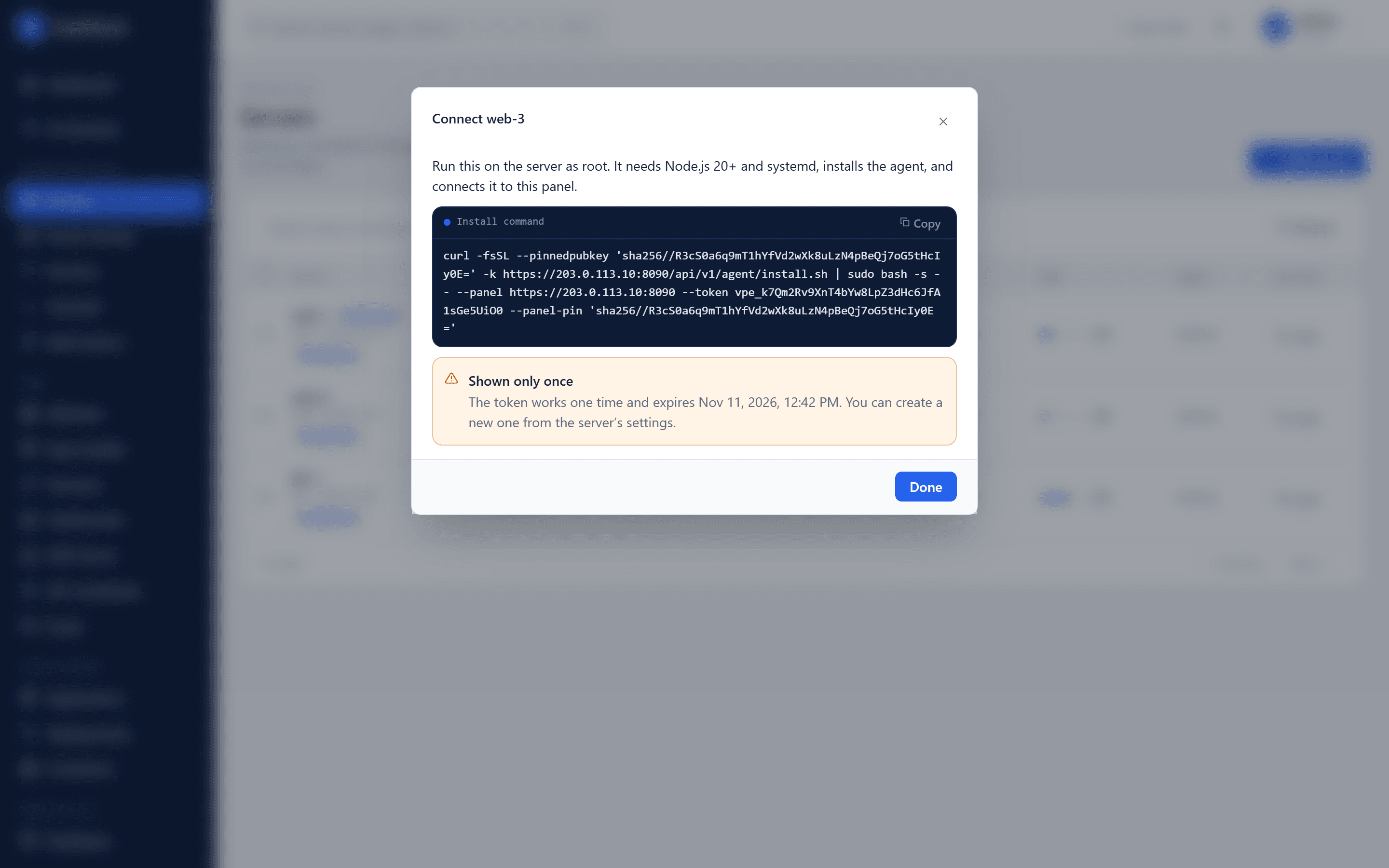
Run it on the server as root
When the panel has a domain with a trusted certificate, the command looks like this:
curl -fsSL https://panel.example.com/api/v1/agent/install.sh \
  | sudo bash -s -- --panel https://panel.example.com --token vpe_…
A panel that still uses its own self-signed certificate (the default after installation) gives a pinned command instead:
curl -fsSL --pinnedpubkey 'sha256//…' -k https://203.0.113.10:8090/api/v1/agent/install.sh \
  | sudo bash -s -- --panel https://203.0.113.10:8090 --token vpe_… --panel-pin 'sha256//…'
curl accepts only the panel's public key, and the installer checks that the certificate the panel sends carries the pinned key before installing anything. It saves that certificate as /etc/vaultpanel-agent/panel-ca.pem, and the agent trusts exactly that certificate, with normal TLS checks. Someone in the middle with a different certificate is refused, so servers can be added safely before the panel has a domain.
Wait for it to come online
The installer downloads the agent for the server's CPU type to /usr/local/bin/vaultpanel-agent, checks that it runs, registers it and starts the service. The server's status changes from Waiting for agent to Online within seconds.
What registration does
When the agent registers, it generates an Ed25519 key pair and sends the public key with the enrollment token. The panel returns the agent's ID and the panel's own job-signing public key, which the agent pins. The agent writes /etc/vaultpanel-agent/config.json and agent.key, both mode 600. Once the agent runs as its own user, config.json becomes root:vaultpanel-agent mode 640, so the agent can read it but not change it.
From then on:
- Every request the agent makes is signed (method, path, timestamp, nonce and body hash). The panel checks the signature, a clock window of plus or minus 5 minutes, and that the nonce was never used before.
- Every job the panel sends is signed with the panel's key. The agent refuses envelopes that are unsigned, changed, addressed to another server, expired or already run.
- The agent re-validates each operation's parameters against its own allow-list and runs fixed commands without a shell.
There is no endpoint that runs arbitrary commands, on the panel or on the agent.
How the agent runs
From agent 0.36.0, an agent installed by the install script moves itself to two services on its first start:
| Service | Runs as | Does |
|---|---|---|
vaultpanel-agent | vaultpanel-agent, a system user without a shell or home | Talks to the panel: heartbeat, jobs and the terminal link. No capabilities, a read-only system, no access to /home or /root. |
vaultpanel-agent-helper | root | Runs jobs and opens terminal shells after checking each one against the panel's signature itself. Has no connection to the panel. |
The two talk over a local socket. A flaw in the agent's network-facing side therefore does not give root: the helper trusts only what the panel signed.
If the agent cannot reach the panel as its own user within 10 minutes, the helper puts the single root service back (the original unit is kept as vaultpanel-agent.service.root), and the server's security checks show Agent privileges with the reason. To keep one root service on purpose, set "runAsRoot": true in /etc/vaultpanel-agent/config.json and restart vaultpanel-agent-helper.
Heartbeat and offline detection
Every 15 seconds the agent sends its system details, CPU, load, memory, swap, disk, network, process count, filesystems and the state of the services it watches. Every few minutes it also reports the installed web stack, certificates, app processes, database sizes, backup files, a security summary and the self-check.
A server whose agent has not reported for 90 seconds is marked Offline (VAULTPANEL_AGENT_OFFLINE_SECONDS). The panel records server.offline and server.online in the audit log, and both can be sent to webhooks and by panel email.
Updating the agent
Agents report which operations they support. When you use a feature newer than a server's agent, the panel refuses it with AGENT_OUTDATED and the server page offers an update.
- From the panel (agent 0.7.0 and newer): click Update agent on the server's Overview, or run the Update the agent bulk action on many servers. The signed job names the version, size and SHA-256 of the program the panel serves for the server's CPU type. The agent refuses any other file, runs the new program once to check its version, swaps it into
/usr/local/bin/vaultpanel-agent, keeps the old one asvaultpanel-agent.previous, and restarts. The panel offers the update only when it has the program for that server's CPU type. Updating needsservers.manage. - With the upgrade command: servers still on the old Node.js agent need this once (see below). It replaces the agent, keeps the registration and policy in
/etc/vaultpanel-agent, and restarts the service.
curl -fsSL https://panel.example.com/api/v1/agent/install.sh \
  | sudo bash -s -- --upgrade --panel https://panel.example.com
A panel with a self-signed certificate adds --panel-pin to this command; copy it from the server page. The same --upgrade --panel <url> --panel-pin <pin> form moves an agent to a panel that turned HTTPS on, or refreshes its certificate after vaultpanel https renew.
Agent versions look like 0.42.0-rs.2. The numbers carry on from the old Node.js agent's 0.42.0, so any "agent 0.38.0 or newer" in these docs is met.
Moving from the Node.js agent
Up to version 0.42.0 the agent was a Node.js program in /opt/vaultpanel-agent. It has been replaced by one program written in Rust. The old agent can only install Node.js packages, so the panel cannot move it with an Update agent job. Instead, the server's page shows a command to run once on the server, and bulk updates skip the server and say so:
curl -fsSL https://panel.example.com/api/v1/agent/install.sh \
  | sudo bash -s -- --upgrade --panel https://panel.example.com
With a self-signed panel certificate the command also carries the pin options, as the install command does; copy it from the server page. The command:
- Downloads the agent for the server's CPU type to
/usr/local/bin/vaultpanel-agentand checks that it runs. - Keeps the registration, key and policy in
/etc/vaultpanel-agent, so the server stays the same server in the panel, with its history. - Removes the old agent's two services and replaces them with the new agent's root service, which then moves itself to its own user and the root helper as usual.
- Points the panel's cron jobs and Certbot's wildcard certificate hook at the new program.
- Deletes
/opt/vaultpanel-agentonce the new agent is running. If it does not start, the folder is kept and the command says where to look:journalctl -u vaultpanel-agent.
After that, Update agent and bulk updates work as usual. The panel's own server moves by itself the next time the panel starts. Node.js stays on the server: apps and PM2 still use it, the agent does not.
Agent policy
/etc/vaultpanel-agent/config.json is the server owner's local policy. It wins over anything the panel asks. Restart the agent after changing it.
| Key | Default | Effect |
|---|---|---|
allowedServices | Common web, database, mail, DNS and security units | Units that may be inspected, started, stopped or restarted (globs such as php*-fpm) |
watchServices | Common web stack units | Units reported with each heartbeat |
allowReboot | true | false refuses reboots |
allowProcessSignals | true | false refuses stopping or killing processes |
allowWebStackInstall | true | false refuses installing packages |
allowWebsites, allowApplications, allowDatabases | true | false refuses every website, app or database operation |
allowBackups, allowCron | true | false refuses backups and restores, or cron jobs |
allowFirewall, allowSshConfig, allowFail2ban, allowUpdates | true | false refuses firewall, SSH, Fail2ban or update changes |
allowContainers, allowDns, allowMail | true | false refuses container, DNS or email operations |
allowTerminal | true | false refuses the browser terminal |
allowSelfUpdate | true | false refuses updates from the panel; use the upgrade command instead |
runAsRoot | false | true keeps one root service instead of its own user plus a root helper |
Replacing the agent's registration
If you reinstalled the server or lost the agent's key, open the server's Settings tab and click New enrollment token, then run the new install command on the server. Any earlier unused token stops working, and the current agent keeps running until the new one registers. Registering a new agent revokes the old one.
Removing a server
On the server's Settings tab, Danger zone > Remove server removes it from the panel. You type the server's name to confirm.
- The agent is revoked at once and stops, and queued jobs are cancelled.
- Nothing on the server itself is deleted: websites, apps and databases stay as they are.
- Metrics and job history are kept for the audit trail.
To uninstall the agent from the machine afterwards, run on the server:
sudo systemctl disable --now vaultpanel-agent vaultpanel-agent-helper
sudo rm -f /etc/systemd/system/vaultpanel-agent.service /etc/systemd/system/vaultpanel-agent.service.root \
  /etc/systemd/system/vaultpanel-agent-helper.service
sudo systemctl daemon-reload
sudo rm -f /usr/local/bin/vaultpanel-agent /usr/local/bin/vaultpanel-agent.previous \
  /etc/cron.d/vaultpanel /usr/local/lib/vaultpanel/acme-dns-hook
sudo rm -rf /etc/vaultpanel-agent /var/lib/vaultpanel /var/cache/vaultpanel
sudo userdel vaultpanel-agent
Backups in /var/backups/vaultpanel are kept; Uninstalling explains each line.
Troubleshooting
| Symptom | What to do |
|---|---|
| The server stays Waiting for agent | Check the install command's output on the server. Tokens are single use and expire; create a new one under Settings. "Agents must connect over HTTPS" means the panel URL in the command is plain HTTP. |
| The install stops with "does not match the pin in the install command" | The panel at that address does not have the certificate the command was made for. Copy a new install command and check the address. |
| The server shows Offline | Run systemctl status vaultpanel-agent and journalctl -u vaultpanel-agent on the server. |
CLOCK_SKEW | The server's clock is more than 5 minutes off. Turn on time synchronization: sudo timedatectl set-ntp true. |
AGENT_REVOKED | The server was removed or re-registered. Run the install command again with a new token. |
AGENT_UNREACHABLE on a job | The agent did not pick the job up within 5 minutes. |
NOT_ALLOWED on a job | The agent's policy refuses it, for example allowedServices or allowReboot. |
HELPER_UNAVAILABLE | The root helper is not answering: sudo systemctl restart vaultpanel-agent-helper. |
| Update agent says the Node.js agent is replaced by running the command | The server still runs the old Node.js agent. Run the upgrade command from the server page once: see Moving from the Node.js agent. |
AGENT_PACKAGE_MISSING | The panel has no agent program for this server's CPU type, so it cannot install or update it. |
More in Troubleshooting.
Servers
Manage connected Linux servers from one place, including services, processes, installed software, reboots and the jobs that run on them.
Monitoring and alerts
Live and historical server metrics, and alert rules that fire on CPU, memory, disk, load, offline servers, failed services, websites and self-checks.