SSL certificates
Serve websites over HTTPS with free Let's Encrypt certificates, wildcard certificates or your own uploaded ones, renewed automatically before they expire.
Each website can have one certificate. VaultPanel issues free certificates from Let's Encrypt through Certbot on the website's server, renews them automatically, and also installs certificates you bought elsewhere. Manage a website's certificate on its SSL tab, and every certificate on Web > SSL Certificates.
Before you start
- The domains point at the server. Let's Encrypt checks each domain over HTTP, so each one needs an
AorAAAArecord for the server. Use Check DNS on the Domains tab. See Domains. - Certbot is installed on the server: open the server's page, go to the Websites tab and install it from the Web stack card.
- The website is enabled. Let's Encrypt has to reach it.
- Ports 80 and 443 are open in the server's firewall and at your hosting provider.
Issue a Let's Encrypt certificate
Open the SSL tab
Open the website, go to the SSL tab and choose Let's Encrypt.
Choose the options
| Option | Default | What it does |
|---|---|---|
| Email for Let's Encrypt | Your sign-in address | Let's Encrypt sends expiry warnings here if renewal ever fails. |
| Redirect HTTP to HTTPS | On | Visitors on http:// are sent to https://. |
| Wildcard certificate | Off, or on when the site has a wildcard domain | Shown when the site's domains fit one wildcard certificate. See Wildcard certificates. |
| Check domains first | On | Before asking Let's Encrypt, the agent checks that each domain reaches this server, so a DNS mistake does not count against Let's Encrypt's rate limits. |
| Use the Let's Encrypt staging service | Off | Issues a test certificate that browsers do not trust. Use it to try your setup without using up rate limits. |
Issue it
Click Issue certificate. The certificate shows as Issuing while Certbot runs, then Active. Follow the progress in the operation log. When it is active, NGINX serves the site on port 443 as well.
The certificate covers every domain of the website except wildcards, which need a wildcard certificate. It is stored by Certbot under the name vp-<site name> in /etc/letsencrypt/live/vp-<site name>/.
If a request fails, the SSL tab shows the error. A failed attempt to issue a certificate again leaves the working certificate in place.
Wildcard certificates
A wildcard certificate covers a domain and every name one level under it: example.com and *.example.com. It is the only way to get a Let's Encrypt certificate for a website with a wildcard domain, and it covers new subdomains without issuing again.
Let's Encrypt checks wildcard certificates through DNS instead of HTTP: the agent adds a TXT record named _acme-challenge for the domain, waits until it is published, and removes it afterwards. That record can go in one of two places.
Through the panel's DNS zone
When the server that hosts the website also serves the domain's DNS zone, the agent adds the record to that zone itself.
- Add the domain under Web > DNS Zones on the website's server, and point the domain's name servers at it at your registrar.
- On the website's SSL tab, tick Wildcard certificate (*.example.com) and issue the certificate.
Through a DNS provider
When the domain's DNS is at Cloudflare or Namecheap, the agent adds the record through the provider's API. Staff save the provider's credentials once under Web > DNS Zones > DNS providers. See DNS providers.
- Tick Wildcard certificate.
- In Check DNS through, choose the provider account instead of This server's DNS zone.
The domain must use that provider's name servers. For Namecheap, the server's public IPv4 address must be whitelisted for Namecheap's API.
Upload a certificate
To use a certificate from another certificate authority, open the website's SSL tab and choose Upload a certificate.
| Field | What to paste |
|---|---|
| Certificate | The site's certificate first, then the intermediate certificates (the CA bundle) your provider gave you, all as PEM text. |
| Private key | The private key as PEM text, without a passphrase. It is sent to the server once and not kept in the panel. |
| Redirect HTTP to HTTPS | On by default. |
Use Load from a file to read either from a file. Before anything is installed, VaultPanel checks that the key belongs to the certificate, that the certificate has not expired and that it covers every domain of the website. The agent checks again on the server.
To remove a passphrase from a key first:
openssl pkey -in key.pem -out plain.pemAn uploaded certificate is never renewed by VaultPanel. Before it expires, use Replace certificate to upload the renewed one. Uploading needs agent 0.28.0 or newer.
Manage a certificate
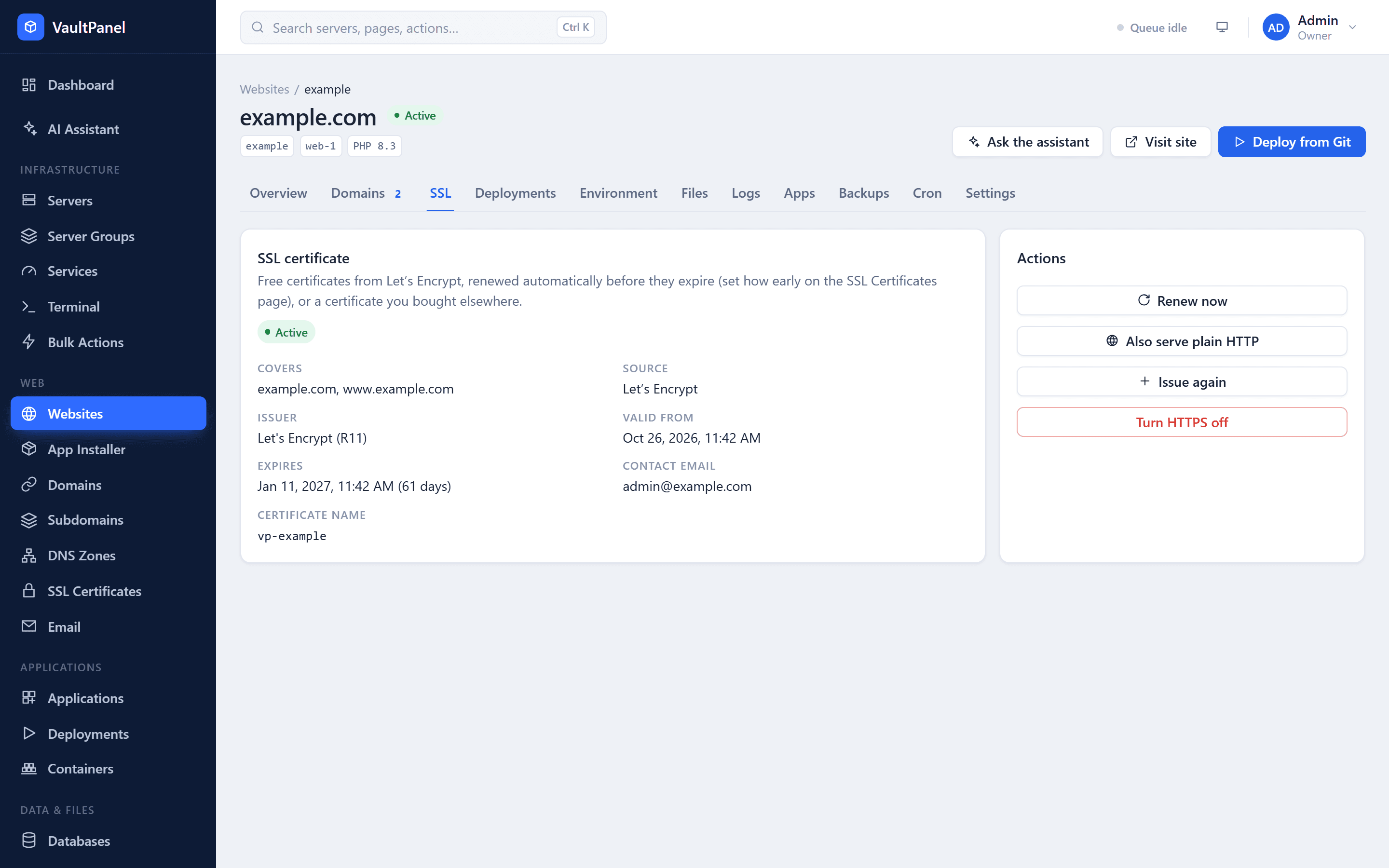
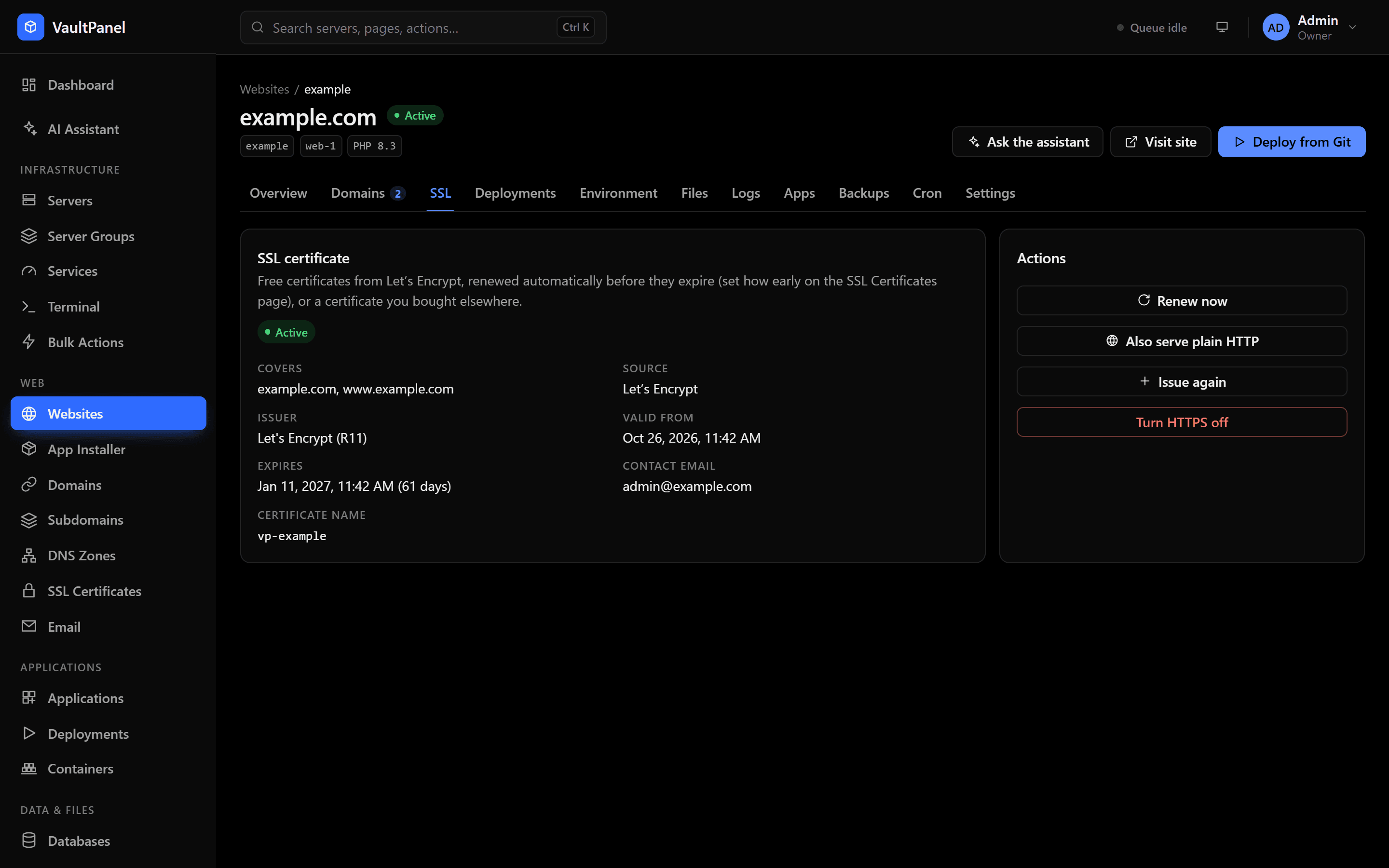
With a certificate active, the SSL tab shows its names, issuer and dates, and an Actions card:
| Action | What it does |
|---|---|
| Renew now | Renews a Let's Encrypt certificate straight away, even outside the renewal window. Not shown for uploaded certificates. |
| Redirect HTTP to HTTPS / Also serve plain HTTP | Turns the redirect from http:// to https:// on or off. |
| Issue again / Replace certificate | Issues a new certificate (for example after adding domains), or uploads a new one. |
| Turn HTTPS off | NGINX stops serving the site over HTTPS. Visitors who saved the https:// address see an error. |
Automatic renewal
Let's Encrypt certificates last 90 days, and renew by themselves:
- Certbot's timer on each server renews certificates once they are inside the renewal window. The agent keeps that timer on, and a hook reloads NGINX after each renewal.
- The panel asks the server to renew any certificate that is still not renewed a day into the window, once a day per certificate, so a stopped timer does not leave a site to expire.
Set the window on Web > SSL Certificates, in the Automatic renewal card:
| Setting | Range | Default |
|---|---|---|
| Renew this many days before expiry | 7 to 60 days | 30 |
| Warn when this many days are left | At least 1, fewer than the renewal window | 14 |
Saving applies the window on every server with certificates. Agents older than 0.25.0 keep Certbot's default of 30 days. Changing the setting needs the settings.manage permission.
Expiry warnings
A certificate renews long before the warning date, so reaching it means renewal failed. VaultPanel then raises these events:
| Event | When |
|---|---|
ssl.expiring | A certificate has fewer days left than the warning setting. It shows as Expiring soon. |
ssl.expired | A certificate expired. |
ssl.renew_failed | An automatic renewal by the panel failed. |
Each one goes to the webhooks that subscribe to it, and by email when you tick it under Alerts by email on Panel email. The uptime check also reports a website whose served certificate expired.
The SSL Certificates page
Web > SSL Certificates lists every certificate with its website, server and expiry date. Filter by Active, Expiring soon, Expired, Issuing or Failed. Staging certificates are marked Staging and uploaded ones Uploaded. The dates update from the agent, so a renewal by Certbot shows up here on its own.
| State | Meaning |
|---|---|
| Issuing | A request is running. |
| Active | Served by NGINX. |
| Expiring soon | Active, with fewer days left than the warning setting. |
| Expired | Active, but past its end date. |
| Failed | The last request failed and there is no working certificate. |
| HTTPS off | The site is served over HTTP only. |
Troubleshooting
- The domain does not reach this server. Fix the
AorAAAArecord and wait for DNS to update, then issue again. Check domains first catches this before Let's Encrypt is asked. - Some domains are not covered. Domains added after the certificate was issued, and wildcard domains without a wildcard certificate, are left out. Issue the certificate again.
- The wildcard option needs a DNS zone. Add the zone under Web > DNS Zones on the website's server and point the domain's name servers at it, or use a DNS provider.
- The agent cannot issue wildcard or uploaded certificates. Update the agent on the server. See Connecting servers.
For more, see Troubleshooting.