Moving from cPanel
Move websites, their files and databases, and email from a cPanel full account backup to one of your servers.
VaultPanel can move a cPanel account to one of your servers from its full account backup. Upload the backup, see what the server found in it, pick what to move and the names to use, and the panel does the rest. Nothing on the old server changes.
| What | What comes over |
|---|---|
| Websites | The main domain, addon domains and subdomains, each with its aliases, folder and PHP version. |
| Databases | Each MySQL database in the backup, imported into a new MariaDB database with its own user. |
| Whole email domains: their mailboxes with their passwords, size limits and mail, and their forwarders. |
Moving websites and databases needs agent 0.48.0 or newer on the server. Moving email needs agent 0.50.0 or newer.
Before you start
- A full account backup. In cPanel, open Backup (or Backup Wizard) and download a full account backup. The file is named like
backup-….tar.gzorcpmove-user.tar.gz. A backup that keeps the home folder ashomedir.tarinside it, or holds more than one account, is refused. - A server that is online, with NGINX and PHP-FPM for the websites and MariaDB for the databases.
- For email, a mail server set up on that server. See Email hosting.
- Permissions:
websites.manageanddatabases.manage, andmail.manageto move email. Moving from cPanel is for staff: hosting customers' hosts move their sites for them.
Move an account
Upload the backup
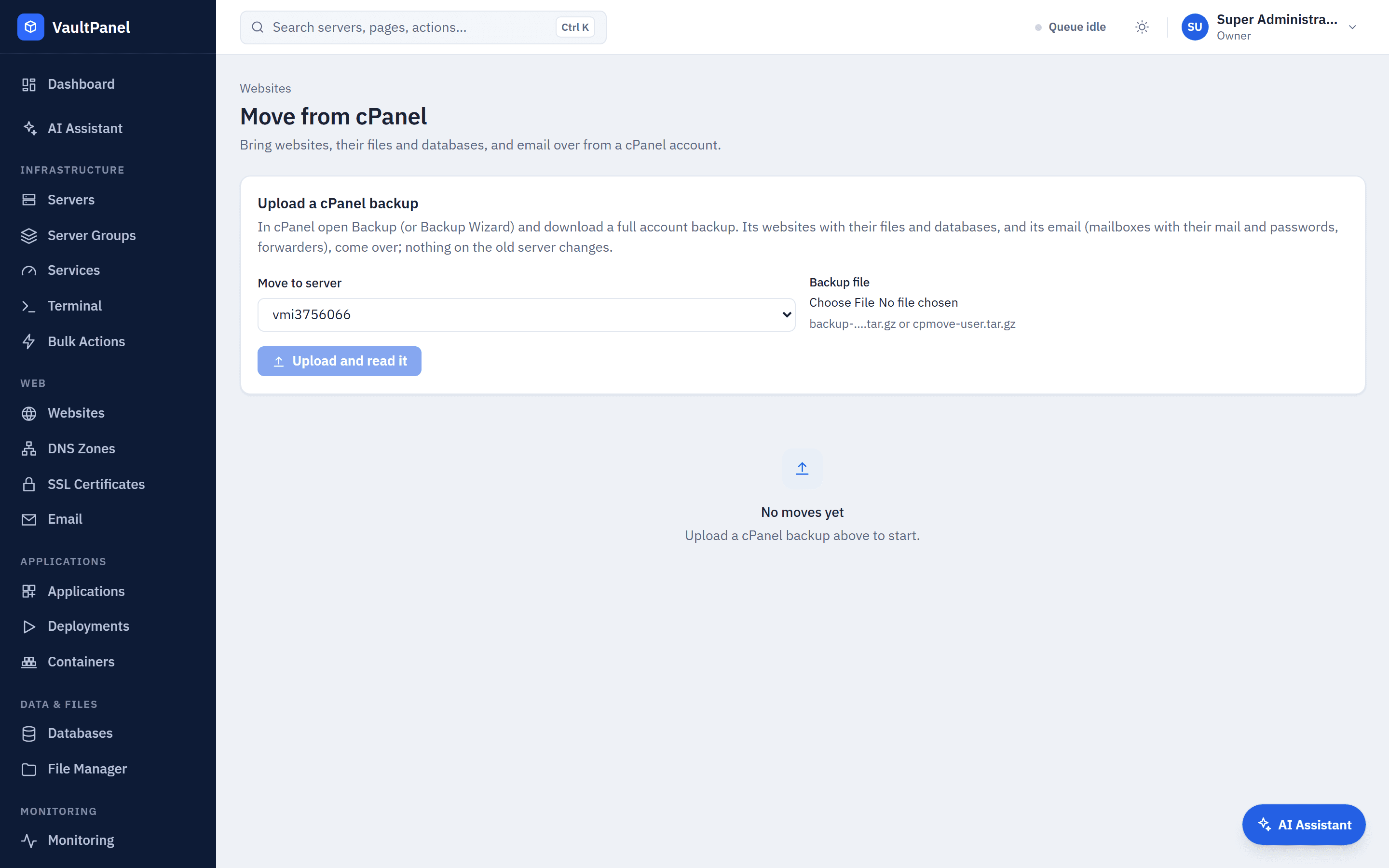
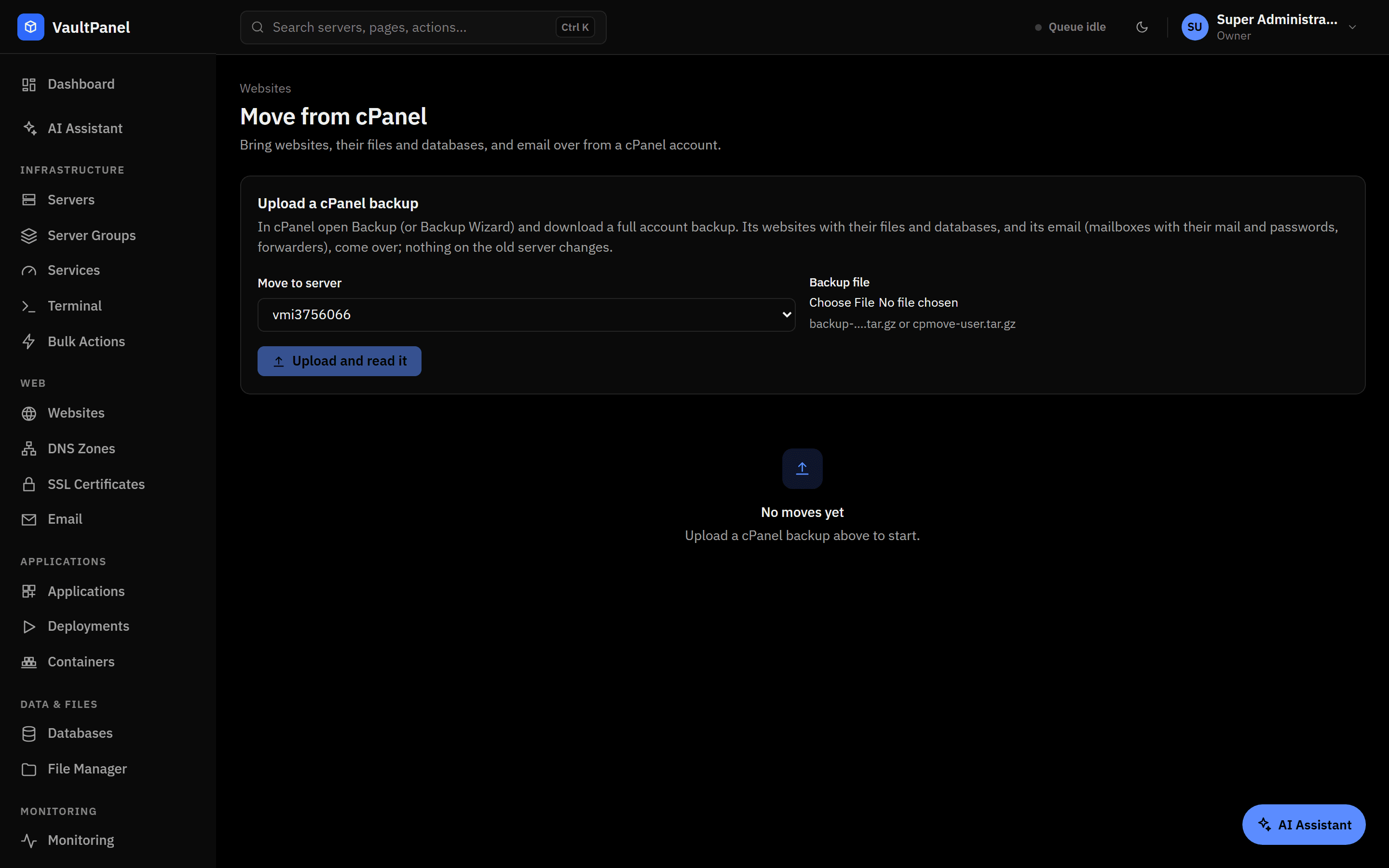
Go to Websites and click Move from cPanel. Choose the server under Move to server, pick the Backup file and click Upload and read it.
The file goes up in pieces of up to 8 MB, with its progress shown. A piece that fails because of the network is sent again.
Wait while the server reads it
The server fetches the backup from the panel, checks it against its SHA-256 and lists what is in it. The move shows Reading the backup, then Ready to move. Nothing is unpacked yet except cPanel's small settings files.
Pick what to move
The page lists the account's websites, databases and email domains, all ticked. For each one you keep:
| Item | Fields |
|---|---|
| Website | Website name (also its Linux user and folder), Domains separated by commas, and PHP (the version cPanel used, when the backup says). |
| Database | Database name here. Its user gets the same name, cut to 32 characters. |
| Email domain | Its mailboxes and forwarders come as a whole. Mailboxes whose password cannot come over are counted. |
Untick what should stay behind.
Move them
Click Move them. The move shows Making websites and databases, then Moving files and data, then Moved. The page follows along; large backups take a while.
What happens
Websites. Each one is made the usual way: a PHP website with its own Linux user, folder and PHP-FPM pool. Its files are unpacked from the backup into the site's public folder, owned by the website, without setuid bits. When another moved website's folder is inside this one (an addon domain inside public_html, for example), that folder is left out: it belongs to the other website. Links in the backup never make the server write outside the site.
Databases. Each one is made with its own user with full access, then the dump from the backup is imported the way database imports are: as an account that can reach only that database. A database is linked to the first moved website, so that website's backups include it.
WordPress. A WordPress whose wp-config.php uses a moved database is pointed at the new database, user and password. Other apps (Joomla, Laravel and so on) need their database settings changed by hand.
Email. Each email domain is added to the server's mail server, without changing its DNS records. Its mailboxes come with:
- their passwords: cPanel's SHA512-CRYPT hashes, which are never kept in a job's stored output,
- their size limits,
- all their mail: folders, and messages read and unread. The mail is owned by the mail server's account; links and Dovecot's old index files are dropped and rebuilt on first use.
Forwarders come with their addresses. Pipes, files, :fail:, :blackhole: and catch-all forwarders are left out. Up to 500 mailboxes come from one backup.
Addresses this server already has are left as they are and listed under Left as they were. Mailboxes whose password cannot come over are listed under Set a password for these mailboxes: set a new one on the Email page.
When the move is done, the backup is deleted from the server.
After the move
Check each website
Open each moved website before its DNS points here, for example with an entry in your computer's hosts file.
Point the DNS here
Change each domain's DNS to the new server. For email, point the domains' MX records here when you are ready. Mail that reaches the old server after the backup was made stays there.
Issue SSL certificates
Once the DNS points here, issue each website's certificate. See SSL certificates.
Discard a move
Discard removes a backup you no longer want to move from the server. It is not possible while the backup is being read or moved. A finished move shows Hide instead. Earlier moves are listed under Earlier moves on the Move from cPanel page.
When a move fails
The move shows Failed with the reason, and Details opens the operation log.
- If it fails while websites and databases are being made, what was already made is kept. Delete it, or move the rest by hand.
- If the backup is no longer on the server, upload it again.
- A dump that uses another database (
CREATE DATABASEorUSE) or sets aDEFINERis refused while importing. See Import and export.
See Migrations in the API reference.