Staging and clones
Make a staging copy of a website to try changes, push it back to the live site with a backup first, or clone a website to a new name and domain.
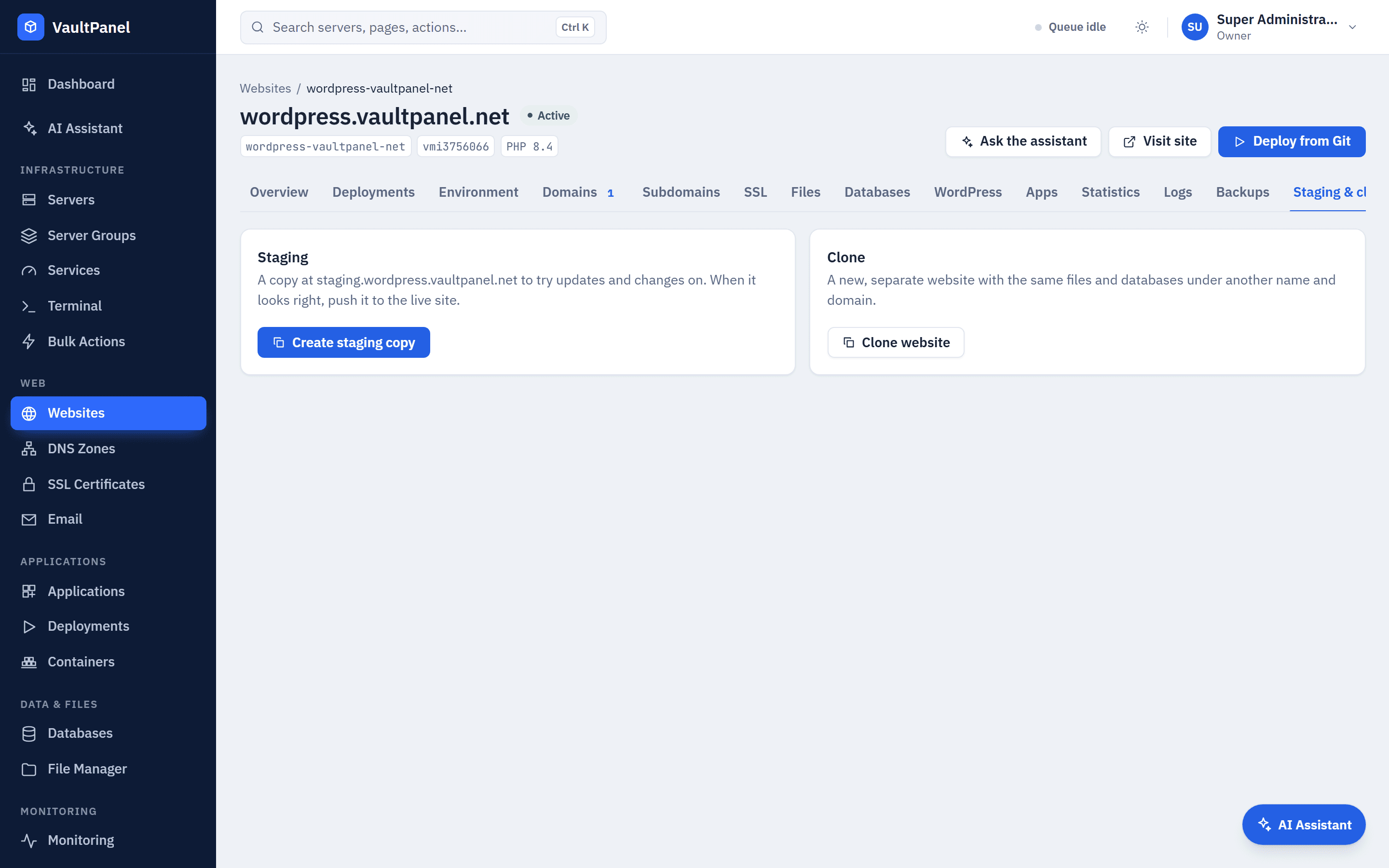
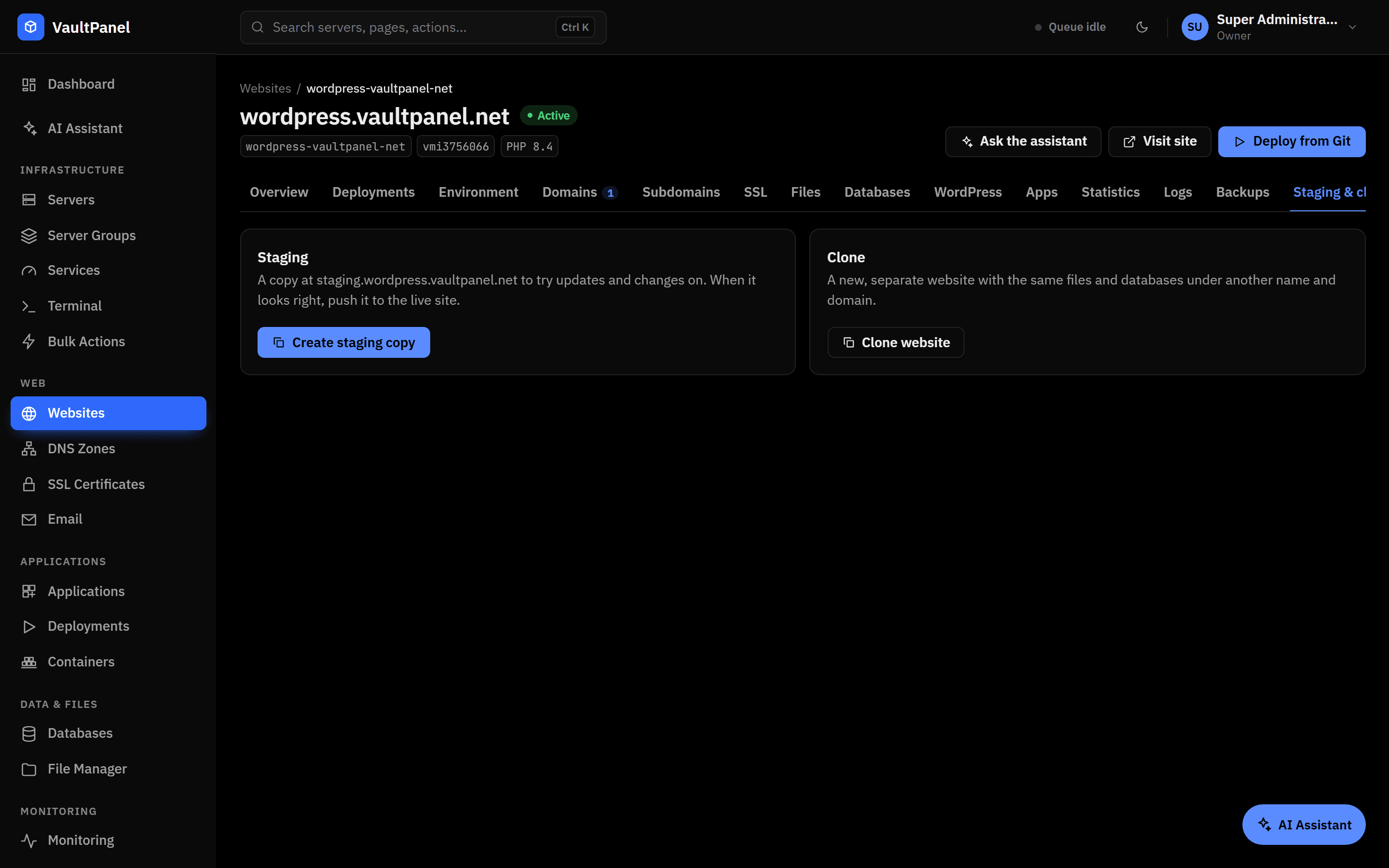
The Staging & clone tab of a website copies it to another website on the same server, with its files, its databases and its settings.
| Copy | What it is |
|---|---|
| Staging copy | A copy at staging.<domain>, linked to the live website. Try updates and changes there, then push them to the live site. |
| Clone | A new, separate website with its own name and domain. |
What can be copied
- Static and PHP websites that are active, with no change running.
- Not websites deployed from Git: deploy the repository to another website instead.
- Not a website that serves an app: copy the app instead.
- Not the panel's own website.
- Up to 10 databases linked to the website.
What a copy holds
- A new website of the same type, PHP version and document root, made the usual way with its own Linux user and folder.
- The files. They are read as the source website's user and written as the copy's, so the copy holds only what the source could read, and all of it belongs to the copy. Logs,
tmp,.sshand.cacheare not copied. - The databases linked to the website: each gets a new database and user of the copy's own, and its data is copied into it.
- The settings: PHP settings, the page cache,
.htaccessfiles, single-page app, custom NGINX rules, and the web application firewall and sign-in protection. - WordPress from the app installer is pointed at its new database and address, serialized values included, and the copy gets the WordPress tools.
A copy starts without a certificate. Issue one on its SSL tab once its domain points at the server.
Make a staging copy
Open the tab
Open the live website and go to the Staging & clone tab.
Create it
In the Staging card, click Create staging copy. Leave Address empty to use staging.<domain>, or type another domain.
When the server holds the domain's DNS zone, the copy's DNS record is added for you. Otherwise point the address at the server yourself.
Follow it
Click Create staging copy. The panel opens the new website. The copy is listed under Recent copies on both websites, with Log to follow it.
A website has one staging copy at a time, and a staging copy cannot have one of its own. Anyone with its address can open it.
Push staging to live
A staging copy shows a Staging copy of … banner with Push to live.
- Click Push to live.
- Type the live website's domain to confirm.
The panel first backs up the live website and its databases. Once the backups are done, the agent copies the staging copy's files and databases over the live site's, and puts the live address back. A WordPress keeps the live site's own database user and address.
Pushing needs the backups.create permission as well.
Clone a website
- On the Staging & clone tab, click Clone website in the Clone card.
- Enter the Name of the copy (lowercase letters, digits and dashes: the copy's Linux user and folder) and its Domains (one or more, separated by spaces or commas).
- Click Clone website.
The clone is a separate website on the same server. It has no link to the website it came from.
Copy statuses
| Status | Meaning |
|---|---|
| Preparing | The new website and its databases are being created. |
| Backing up live | A push is waiting for the live site's backups. |
| Copying | The agent copies the files and databases. |
| Done | The copy is finished. |
| Failed | The copy stopped. The error is shown under it. |
Hosting customers
A customer's copies count against their plan: a staging copy as a subdomain, a clone as a website, and their databases as databases and database users.
Permissions
| Permission | Allows |
|---|---|
websites.manage | Making staging copies and clones. |
databases.manage | Needed as well when the website has linked databases. |
backups.create | Needed as well to push a staging copy to live. |
Related
- WordPress tools to update a staging copy before you push it.
- API reference for the copy endpoints.
WordPress tools
Update WordPress, its plugins and themes, switch maintenance mode and debug logging, and sign in as an administrator, from the website's WordPress tab.
Running applications
Deploy Node.js, Python, Go and Ruby apps from Git, run them under PM2 as their own Linux user, and give them a domain with SSL.