Malware scanning
Install ClamAV on a server, scan websites on request or every week, and quarantine, delete or ignore the files a scan finds.
VaultPanel scans websites for malware with ClamAV. You install ClamAV once per server, then scan each website from its Malware tab, or let the server scan every website once a week.
Install ClamAV on a server
- Open the server and go to its Security tab.
- In the Malware scans card, click Install.
ClamAV then downloads its virus signatures, which takes a few minutes; scans can start once they are there. clamav-freshclam keeps them current, and the card shows when they were last updated.
ClamAV needs about 1.2 GB of free memory while it scans. When the server has less free memory, the agent refuses the scan with a message saying so; try again at a quieter time, or add memory.
Weekly scans
Click Scan every website weekly in the Malware scans card to scan each website on the server once a week. The server scans one website at a time, at low priority. Stop weekly scans turns it off. Installing ClamAV and turning weekly scans on or off needs the security.manage permission.
Scan a website
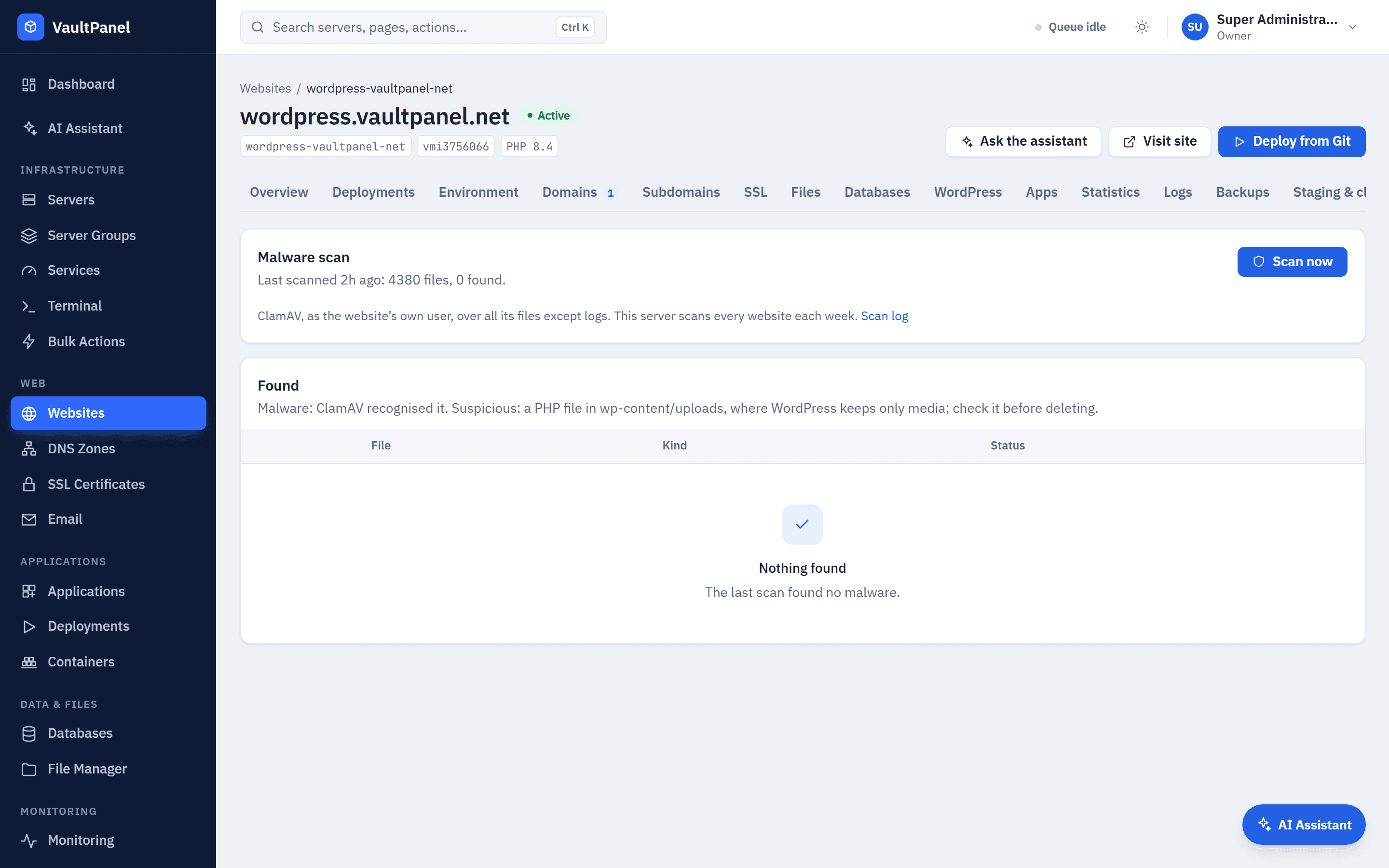
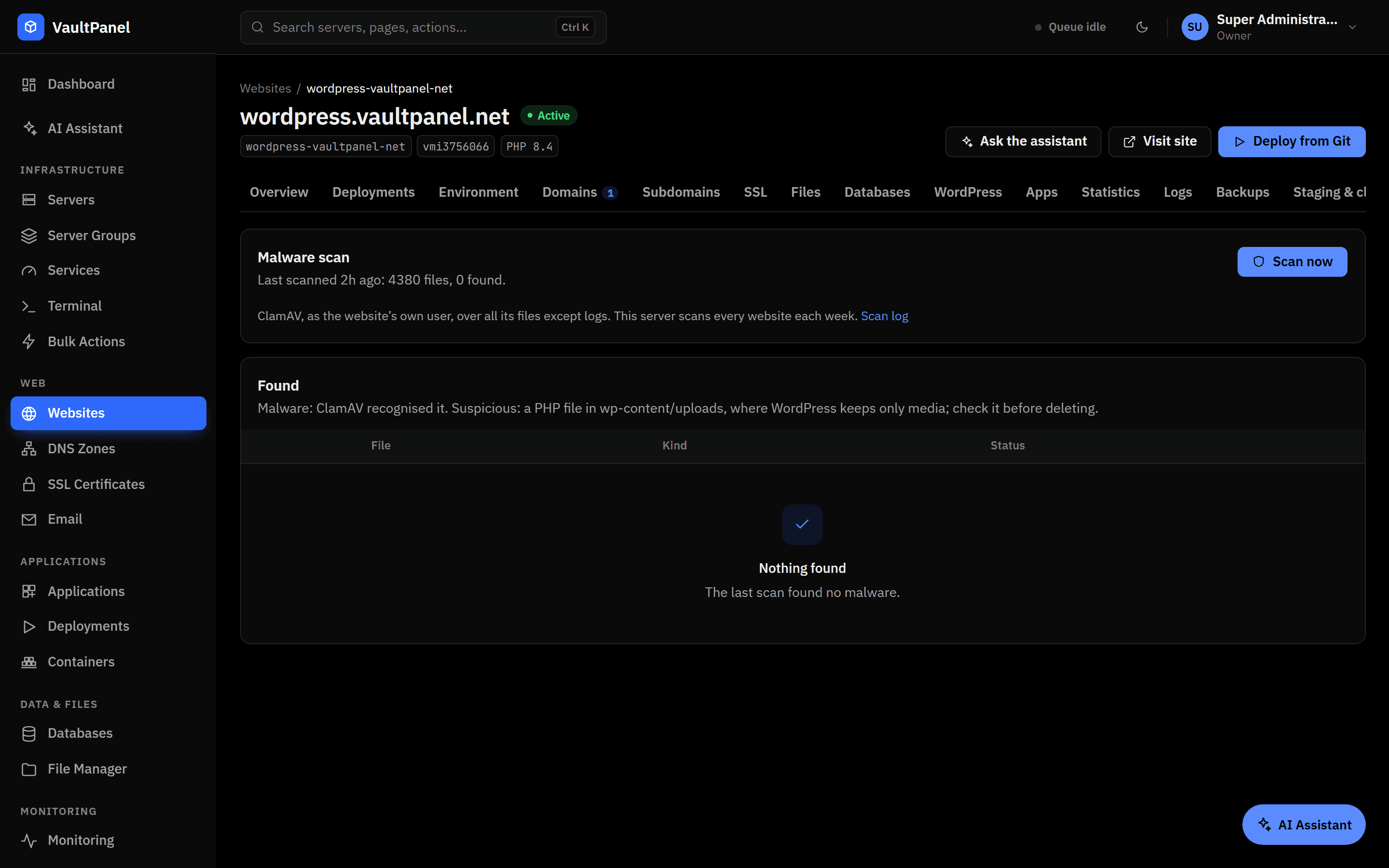
Open the website, go to the Malware tab and click Scan now. The Malware scan card shows when the last scan ran, how many files it checked and how many it found, and links to the Scan log.
A scan runs ClamAV as the website's own Linux user, never as root, at the lowest CPU and disk priority. It checks every file in the site's home folder except its logs, tmp folder and caches.
What a scan finds
The Found card lists each file with its kind and status.
| Kind | Meaning |
|---|---|
| Malware | ClamAV recognised the file. The signature name is shown under the path. |
| Suspicious | A PHP file inside wp-content/uploads. WordPress keeps only media there, so a PHP file there is usually planted. Check it before you delete it. |
When infected files are found, the tab shows a warning, and the website appears in the dashboard's Needs attention list until each file is quarantined, deleted or ignored.
What to do with a file
| Action | What it does |
|---|---|
| Quarantine | Moves the file out of the website to a folder only root can read, under /var/lib/vaultpanel/quarantine. Pages that need the file stop working until it is restored. Quarantine all does this for every file still on the site. |
| Restore | Puts a quarantined file back where it was. It is never written over another file. Only restore a file you are sure is not malware. |
| Delete | Removes the file for good, from the website or from quarantine. A backup is the only way back. |
| Ignore | Leaves the file on the website and stops listing it as found. Stop ignoring lists it again. |
A file that a later scan finds again keeps its status, so an ignored file stays ignored.
Quarantine, restore and delete run on the server as root. The agent walks the file's path from the site's home one folder at a time without following links, so a hacked site cannot trick it into touching files outside the site.
Hosting customers
Customers see the Malware tab of their own websites. When ClamAV is not installed on the server, the tab asks them to contact their host.
Permissions
| Permission | Allows |
|---|---|
websites.read | Seeing the last scan and what it found. |
websites.manage | Scan now, and quarantining, restoring, deleting and ignoring files. |
security.manage | Installing ClamAV and turning weekly scans on or off. |
Related
- Web application firewall to stop attacks before they reach a website.
- Backups to restore a website from before an infection.
- API reference for the malware endpoints.
Web application firewall
Turn on ModSecurity with the OWASP Core Rule Set for a website, start in detect-only mode, turn off rules that catch real visitors, and limit WordPress sign-in attempts.
App installer
Install WordPress, Joomla, Drupal or Laravel in a PHP website in one step, with its database and admin account, from the official release checked on download.