SFTP
Turn on SFTP for a website so you can upload and edit its files with FileZilla, WinSCP, Cyberduck or sftp, locked into the website's own folder.
Each website can have an SFTP account: its own Linux user signs in over SSH with a password, SSH keys or both, and sees only the website's files. Use it with an SFTP app such as FileZilla, WinSCP or Cyberduck, or the sftp command. Manage it on the website's SFTP tab.
Turn SFTP on
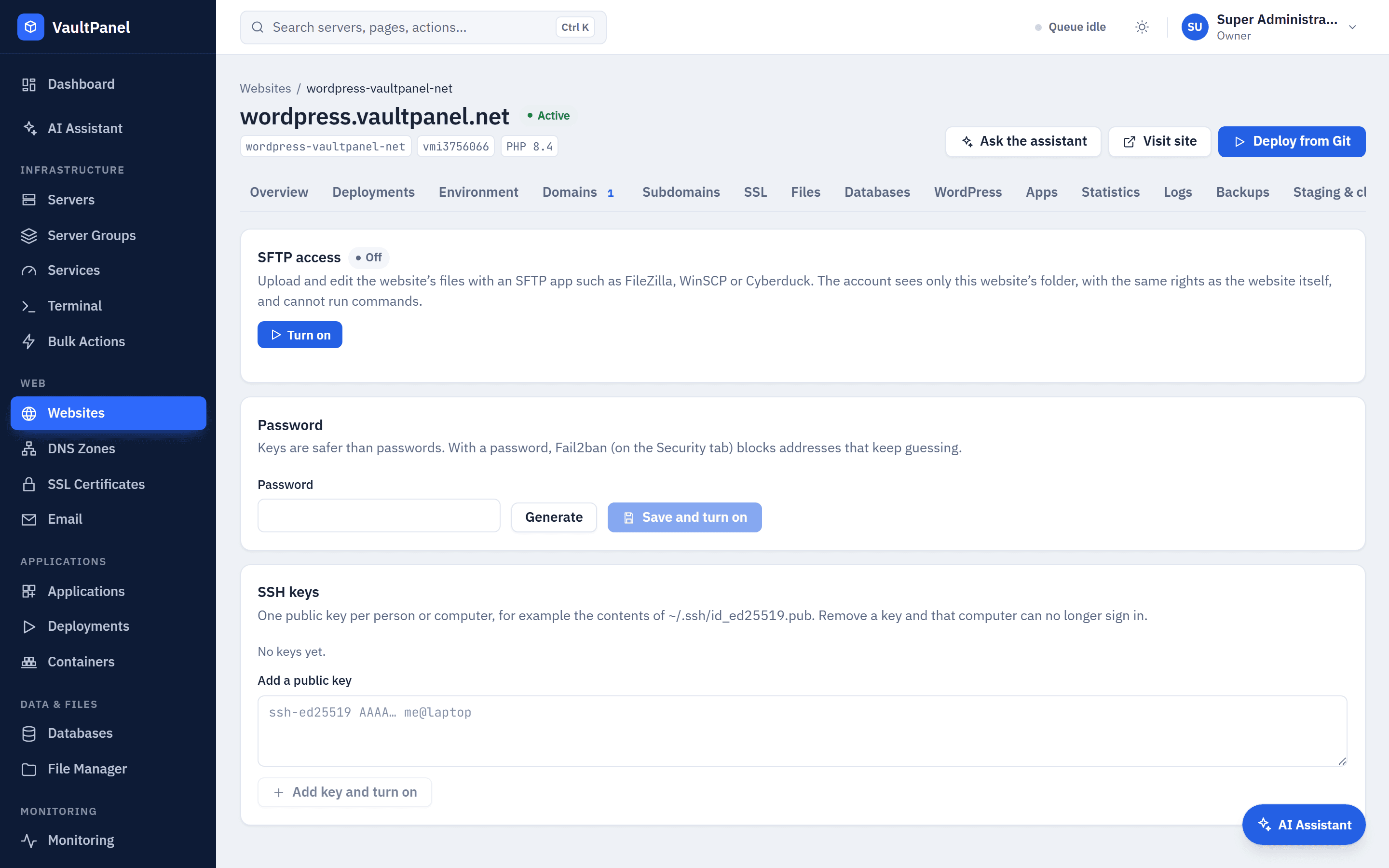
Open the SFTP tab
Open the website and go to the SFTP tab.
Turn it on
In the SFTP access card, click Turn on. When the account has no password or key yet, the panel generates a strong password and shows it once. Copy it straight away.
You can also turn SFTP on by saving a password (Save and turn on) or adding a key (Add key and turn on).
Connect
The card shows what to enter in your SFTP app, each with a copy button:
| Field | What it is |
|---|---|
| Host | The server's public address. |
| Port | The server's SSH port (22 unless you moved it). |
| Username | The website's name, which is also its Linux user. |
| Folder | /<site name>, where the website's files are. |
| From a terminal | The sftp command to connect, such as sftp shop@203.0.113.10. |
The change runs as a job; the card shows Applying… until it finishes.
What the account can do
- It sees only
/<site name>: no other website, not even their names. The agent locks the user into a root-owned folder onto which the website's home folder is mounted, and mounts it again after every reboot. - It has the same rights on the files as the website itself, so files it uploads belong to the website.
- It gets SFTP only: no shell, no port forwarding and no tunnels.
The agent writes one SSH configuration file for every website with SFTP on the server, and tests it with sshd -t before SSH reloads.
Passwords and keys
The Password card sets a password of 12 to 128 characters. Type one, or click Generate, then Save and apply. The new password is shown once. Remove password takes it away; it is not available while SFTP is on and the account has no key.
The SSH keys card holds up to 20 public keys, one per person or computer, such as the contents of ~/.ssh/id_ed25519.pub. Paste a key under Add a public key and click Add key. Each key is listed with its comment and fingerprint; Remove stops that computer from signing in. The last key cannot be removed while SFTP is on and there is no password.
The panel keeps only a hash of the password, never the password itself.
Turn SFTP off
Click Turn off in the SFTP access card. The account can no longer sign in, and its folder, mount and keys are removed from the server. Deleting the website does the same.
Permissions
| Permission | Allows |
|---|---|
websites.read and files.read | Seeing the SFTP tab and the connection details. |
websites.manage | Turning SFTP on and off, and changing the password and keys. |
Related
- File manager to work with the files in the browser.
- SSH for the server's SSH port and sign-in settings.
- API reference for the SFTP endpoints.
Statistics
See a website's visitors, page views, traffic, bots and errors per day, with its top pages, referrers, browsers and missing pages, read from its NGINX access log.
Web application firewall
Turn on ModSecurity with the OWASP Core Rule Set for a website, start in detect-only mode, turn off rules that catch real visitors, and limit WordPress sign-in attempts.